Showing posts with label Oracle Service Bus 11g. Show all posts

Tuesday, June 10, 2014

Oracle Service Bus 11g 11.1.1.8 : How to export an OSB project from OSB console and import it in OEPE

Oracle Service Bus 11g 11.1.1.8 : How to export an OSB project from OSB console and import it in OEPE

1.) On the Right Hand Side pane, select System Administration
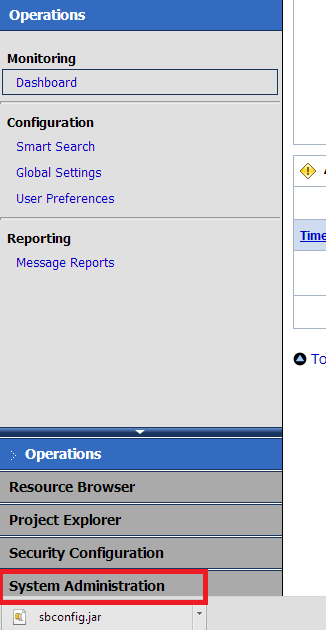


2.) Click on Export Resources


3.) Check the project you want to export and click "Export" This will create an export file 

4.) Save the .jar file (sbconfig.jar) in a location. We will use this file in OEPE

5.) Assuming if the Eclipse was installed in the folder c:\OSB, please execute C:\OSB\Oracle\Middleware\oepe\eclipse.exe  to start eclpipse.

6.) On Eclipse, click on New--> Other--> Oracle Service Bus
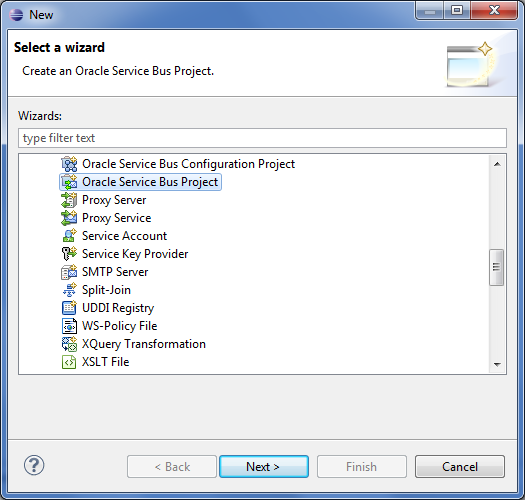
7.) Press Next
8.) Put the project name. This may be the same name as the name of the project in OSB console

9.) This will create a project in Eclipse and open Eclipse's OSB perspective.

10.) Right click on Project and import the jar file


11.) Select the jar file that from exported from OSB console

12 .) Select all the check boxes and press Finish

13.) The project is imported. Right click on the Proxy service and Run the service on Server. Please ensure that you have already created the connection using URL:

http://oraclesoaandoim.blogspot.com/2012/04/oracle-service-bus-11115-create-server.html   


Monday, October 8, 2012

Fusion Middleware/ Oracle SOA 11.1.1.6 :Switching the JVM from Sun JDK to JRockit JDK

Fusion Middleware/ Oracle SOA 11.1.1.6 :Switching the JVM from Sun JDK to JRockit JDK


1. Download and install Oracle JRockit JDK (latest version currently 28.2.0):


  • Download JRockit for Linux x86-64 from http://www.oracle.com/technetwork/middleware/jrockit/downloads/index.html.
  • Execute the following command to change permissions and start the installer:

           chmod 750 jrockit-jdk1.6.0_29-R28.2.0-4.1.0-linux-x64.bin
          ./jrockit-jdk1.6.0_29-R28.2.0-4.1.0-linux-x64.bin

  • On the Welcome prompt, press Enter.
  • On the Choose Production Installation Directory prompt, enter a directory such as /u01/app/oracle/jrockit1.6.0_29, to install JRockit and press Enter twice.
  • On the Optional Components 1 prompt, press Enter to accept the default (which is not to install Demos and Samples).
  • On the Optional Components 2 prompt, press Enter to accept the default (which is not to install Source Code).
  • On the Installation Complete prompt, press Enter to exit the installer.
2. Log on to the Linux server hosting your Oracle SOA Suite 11g installation as the oracle user.
3. Stop the AdminServer as well as all managed servers.
4. Stop the Node Manager.
5. Edit the file $MW_HOME/wlserver_10.3/common/bin/commEnv.sh and replace the following two entries     
     as follows:
         OLD: JAVA_HOME="/u01/app/oracle/jdk1.6.0_26"
         NEW: JAVA_HOME="/u01/app/oracle/jrockit1.6.0_29"
         OLD: JAVA_VENDOR=Sun
         NEW: JAVA_VENDOR=Oracle
6.Edit the file $MW_HOME/user_projects/domains/[Domain]/bin/setDomainEnv.sh, and replace the 
   following two entries as follows:
   OLD: BEA_JAVA_HOME=""
   NEW: BEA_AVA_HOME="/u01/app/oracle/jrockit1.6.0_29"
   OLD: SUN_JAVA_HOME="/u01/app/oracle/jdk1.6.0_26"
   NEW: SUN_JAVA_HOME=""

7. Edit the domain configuration file $MW_HOME/user_projects/domains/[Domain]/bin/setSOADomainEnv.sh, and replace the following entry
as follows:  
    OLD: PORT_MEM_ARGS="-Xms768m -Xmx1536m"
    NEW: PORT_MEM_ARGS="-Xms1536m -Xmx1536m -Xgcprio:throughput
    -XX:+HeapDumpOnOutOfMemoryError

8.Start up the Node Manager.
9. Boot up the AdminServer and all managed servers back again.

10. View the new JDK being used in the $DOMAIN_HOME/servers/AdminServer/logs/AdminServer.log

Monday, May 7, 2012

Oracle Fusion Middleware Security for Web Services 11g Release 1 (11.1.1.6) Policy Sets

Oracle Fusion Middleware Security  for Web Services 11g Release 1 (11.1.1.6) Policy Sets

Policy sets provide a means to attach policies globally to a range of endpoints of the same type. 


  • In addition to attaching policies directly to endpoints, you can create policy sets that allow you to attach policies globally to a range of endpoints of the same type, regardless of the deployment state. You can create and manage policy sets using both Fusion Middleware Control and the WebLogic Scripting Tool, WLST. 
  • Attaching policies globally using policy sets allows an administrator to ensure that all subjects are secured in situations where the developer, assembler, or deployer did not explicitly specify the policies to be attached.
  • Policies attached globally using policy sets also provide the following:
    • Override the policies
    • Specify run time constraint
  • Policy subjects to which policy sets can be attached include SOA components, SOA service endpoints, SOA references, Web services endpoints, Web service clients, Web service connections, and asynchronous callback clients. Policy sets can be attached at the following scopes:
    • Domain — all policy subjects of the specified type in a domain
    • Server instance—all policy subjects of the specified type in a server instance
    • Application or Partition—all policy subjects of the specified type in an application or SOA partition
    • Application module or SOA composite—all policy subjects of the specified type in an application module or SOA composite
    • Service or reference—all policy subjects of the specified type in a SOA service or reference
    • Port or component—all policy subjects of the specified type in a port or SOA component

    Creating a Policy Set


    • Navigate to the Policy Set Summary page.


    • From the Policy Set Summary page, click Create.
    • In the Enter General Information page, as shown in enter a name for the policy set.
    • Select the Enabled check box if you want to enable the policy set.
    • In the Type of Resources field, select the type of policy subject to which you want to attach policies. On the next page you define the scope of resources to which you want the policy set to apply. The type of policy subjects that you can select are as follows:
      • SOA Component
      • SOA Service
      • SOA Reference
      • Web Service Connection
      • Web Service Endpoint
      • Web Service Client
      • Asynchronous Callback Client
      • Press Next on the Top Right


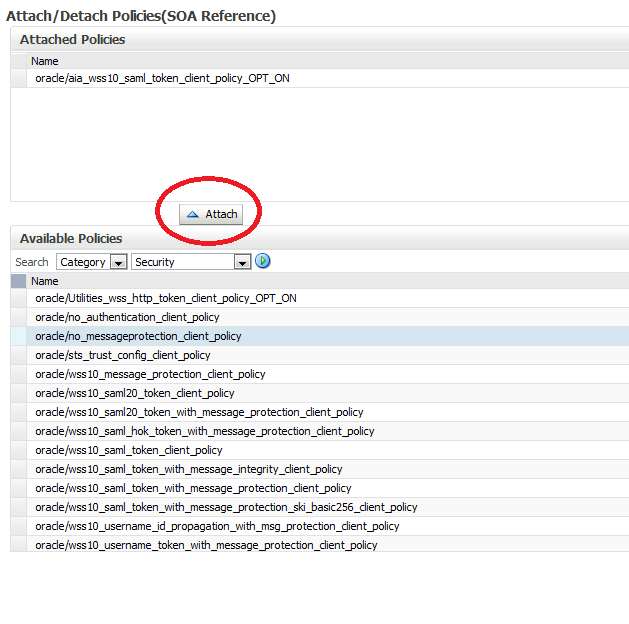
    • Attach the policies and selecting the policy and pressing the Attach button; press Next

    Monday, April 9, 2012

    Oracle Service Bus 11.1.1.6: Consume a JMS Message

    Oracle Service Bus 11.1.1.6: Consume a JMS Message

    Setting the Service Type of a proxy service to Messaging Service allows us to set the
    Protocol to jms. On a proxy service, the JMS protocol always works inbound, that is, the
    proxy service is consuming messages from a queue. On a business service in contrast, the
    JMS protocol always works outbound, that is, the business service is putting the message
    to a queue.
    • Create a new OSB project ConsumeOSBMessage and create a proxy folder
    within it.


    •  Create a new proxy service and name it JMSConsumer.

    •  Navigate to the General tab.
    •  Set the Service Type option to Messaging Service.
     

    • Navigate to the Messaging tab
    • Set the Request Message Type option to Text.

    • Navigate to the Transport tab.
    • Select jms for the value of the Protocol drop-down listbox.
    •  Enter the end point url


    • Navigate to the JMS Transport tab
    • Set the Destination Type option to Queue.


    How IdP Groups Are Tied to Databricks Groups (Unity Catalog)

      🔗 How IdP Groups Are Tied to Databricks Groups (Unity Catalog) 🔑 Key Principle (Read This First) Databricks does NOT “map” IdP groups...