Tuesday, July 15, 2014

OIM 11.1.2.2 Create Identity.jks using Weblogic Import Private Key Utility

OIM 11.1.2.2 Create Identity.jks using Weblogic Import Private Key Utility


  • Go to the server lib directory of WebLogic:
      cd $MIDDLEWARE_HOME/wlserver_10.3/server/lib/


  • Set the right environment:
             . ../bin/setWLSEnv.sh

  • Use the key and certificate to crate the identity
java utils.ImportPrivateKey -certfile rootcertificate.crt -keyfile mindtelligent.com_wildcard.key -keyfilepass  keyFilePassword -keystore MindTelligentIdentityKeyStore.jks -storepass mindtelligent1 -alias mindtelligent1com -keypass mindtelligent1


  • Verify if the certificate is created correctly
     keytool -v -list -keystore MindTelligentIdentityKeyStore.jks -storepass 

Tuesday, July 1, 2014

Oracle® Fusion Middleware OES-11g Release 2 (11.1.2.2.0)- How to configure custom Attribute Retriever

Oracle® Fusion Middleware OES-11g Release 2 (11.1.2.2.0)- How to configure custom Attribute Retriever

Create a java code, convert to a jar, and add it to the CLASSPATH.
Here is the sample of custom attribute retriever:

package com.mindtelligent.oes.customproviders;
import com.bea.security.providers.authorization.asi.AttributeRetriever;
import weblogic.security.spi.Resource;
import weblogic.security.service.ContextHandler;


import javax.security.auth.Subject;
import java.util.*;
import java.io.*;

public class MyAttributeRetriever implements AttributeRetriever {
private static final String TestCustomAttribute = "TestCustomAttribute";
private String[] attributes = {"TestCustomAttribute"};
private static boolean switchStatus = true;
public String[] getHandledAttributeNames() {
return attributes;
}
public Object getAttributeValue(String name,Subject subject,Map roles,Resource resource,ContextHandler contextHandle) {
ArrayList listValues = new ArrayList();
String attrValue = "default";
if (name.equals("TestCustomAttribute")) {
System.out.println("Name"+name);
attrValue = "TestCustomAttribute";
System.out.println( "attrValue value is TestCustomAttribute "); }
else { System.out.println( "attrValue value is NotTestCustomAttribute "); }
return attrValue;}


Modify jps-config.xml, located in the Security Module
For Example:

<serviceProvider class="oracle.security.jps.az.internal.runtime.provider.PIPServiceProvider" name="pip.service.provider" type="PIP"/>
<serviceInstance name="pip.service.MyAttributeRetriever" provider="pip.service.provider">
      <property name="type" value="CUSTOM_PIP"/>
      <property name="application" value="TestCustomAttribute"/>
      <property name="description" value="MyAttributeRetriever"/>
      <property name="classnames" value="com.mindtelligent.oes.customproviders.MyAttributeRetriever"/>
  </serviceInstance>
<serviceInstanceRef ref="pip.service.MyAttributeRetriever"/>


Oracle® Fusion Middleware OES-11g Release 2 (11.1.2.2.0) Configure Web Service Security Module

Oracle Fusion Middleware OES-11g Release 2 (11.1.2.2.0) Configure Web Service Security Module

To configure RMI Security Module instance in a controlled distribution mode, then do the following:


Open 
smconfig.rmi.controlled.prp file (located in OES_CLIENT_HOME/oessm/SMConfigTool) in a text editor, and then specify the parameters described in following table

ParameterDescription
oracle.security.jps.runtime.pd.client.policyDistributionMode
Accept the default value controlled-push as the distribution mode.
oracle.security.jps.runtime.pd.client.RegistrationServerHost
Enter the address of the Oracle Entitlements Server Administration Server.
oracle.security.jps.runtime.pd.client.RegistrationServerPort
Enter the SSL port number of the Oracle Entitlements Server Administration Server. You can find the SSL port number from the WebLogic Administration console.


Run the config.sh (located in OES_CLIENT_HOME/oessm/bin on UNIX) or config.cmd (located in OES_CLIENT_HOME\oessm\bin on Windows) as follows: 

config.sh -smType ws -smConfigId ws -WSListeningPort 9410 -prpFileName /data/app/Oracle/Middleware/oesclient/oessm/SMConfigTool/smconfig.ws.controlled.prp


When prompted, specify the following:
  • New key store password for enrollment
  • Oracle Entitlements Server user name (This is the Administration Server's user name)
  • Oracle Entitlements Server Password (This is the Administration Server's password)


Saturday, June 14, 2014

Oracle SOA 12c 2Way SSL Extracting Private Key using OpenSSL

This thread explains on the steps to convert .pfx files to JKS


  • Run the attached OpenSSL command to extract the certificate from the .pfx file
openssl pkcs12 -in filenameWithPrivateKey.pfx -out mindtelligent.crt -nodes

  • Open the file mindtelligent.crt and cut/past the following section ina file called MindTelligent.key

-----BEGIN RSA PRIVATE KEY-----
(Block of Encrypted Text)
-----END RSA PRIVATE KEY-----

  • The Rest of the file mindtelligent.crt will have Server Certificate, Root Certificate, and Intermediate Certificate. 

  • Follow the Blog Post here, for creating an Identity Key Store

Tuesday, June 10, 2014

Oracle Service Bus 11g 11.1.1.8 : How to export an OSB project from OSB console and import it in OEPE

Oracle Service Bus 11g 11.1.1.8 : How to export an OSB project from OSB console and import it in OEPE

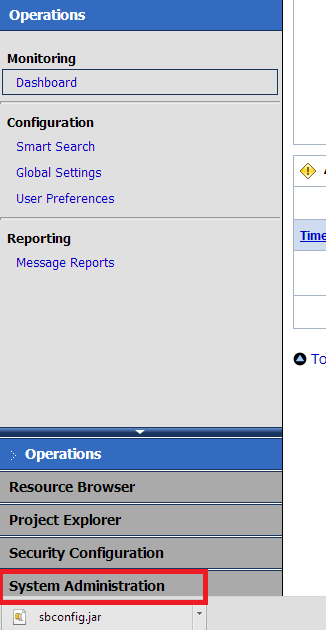
1.) On the Right Hand Side pane, select System Administration


2.) Click on Export Resources


3.) Check the project you want to export and click "Export" This will create an export file 

4.) Save the .jar file (sbconfig.jar) in a location. We will use this file in OEPE

5.) Assuming if the Eclipse was installed in the folder c:\OSB, please execute C:\OSB\Oracle\Middleware\oepe\eclipse.exe  to start eclpipse.

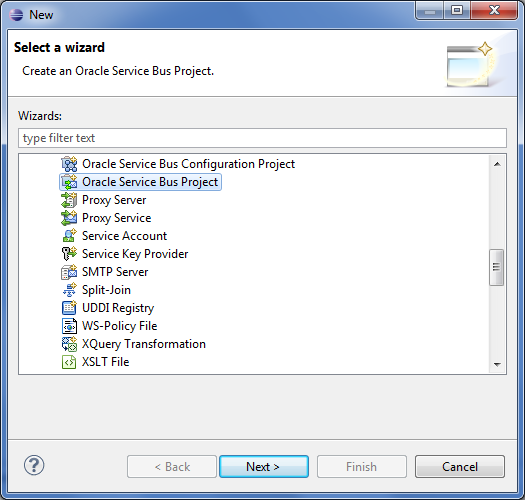
6.) On Eclipse, click on New--> Other--> Oracle Service Bus
7.) Press Next
8.) Put the project name. This may be the same name as the name of the project in OSB console

9.) This will create a project in Eclipse and open Eclipse's OSB perspective.

10.) Right click on Project and import the jar file


11.) Select the jar file that from exported from OSB console

12 .) Select all the check boxes and press Finish

13.) The project is imported. Right click on the Proxy service and Run the service on Server. Please ensure that you have already created the connection using URL:

http://oraclesoaandoim.blogspot.com/2012/04/oracle-service-bus-11115-create-server.html   


Thursday, June 5, 2014

Creation of OES SM (Security Module) instance

    The requirements for creating an OES SM instance depend on the type of SM that you create. Detailing the configuration settings for each type of SM is beyond the scope of this tutorial. For this reason, you will focus on creating a WebLogic SM because it is one of the most common SM types.
    When creating a WebLogic SM instance, consider these points:
    1. The SM configuration file (often referred to as the SMConfig file) contains the configuration used to set up the OES SM aspect of the configuration. It provides the policy distribution, policy decision, and policy enforcement points.
    2. The WebLogic domain is the application server used to deploy your applications. When creating an OES WebLogic SM, you run WebLogic Configuration Wizard as part of the process.
    3. Although WebLogic Configuration Wizard runs automatically, you must select one of the following SM options. This tutorial shows you how to create a non-JRF WebLogic SM.
      • Non-JRF WebLogic SM
      • JRF WebLogic SM
      • Web Service SM on WebLogic
      • Oracle Service Bus (OSB) SM on WebLogic
      • Other options for Managed Servers
     

    Configuring the SMConfig Properties File

      You create all OES SMs by using the SMConfigTool. This tool uses a configuration file called SMConfig, which contains the settings used to configure an SM instance. This section guides you through configuring an SM and running the SMConfigTool to create a WebLogic SM instance and domain.
      In a terminal window, navigate to the OES folder that contains sample SMConfig files, copy the smconfig.prp file to a new file named wls_smconfig.prp, and open the new file for editing:
      $ cd $MW_HOME/oes_client/oessm/SMConfigTool
      $ cp smconfig.prp wls_smconfig.prp
      $ gedit wls_smconfig.prp &
      Use the following table to change the settings in the file:
      Property
      Value
      Purpose
      oracle.security.jps.runtime.pd.client.
      policyDistributionMode
      controlled-push
      Sets the distribution mode for how the SM obtains its OES policy set
      oracle.security.jps.runtime.pd.client.
      RegistrationServerHost
      localhost
      The host of the OES Administration Server that is used for registering the SM instance with the Administration side.
      oracle.security.jps.runtime.pd.client.
      RegistrationServerPort
      7002
      The SSL port of the OES Administration Server that is used for registering the SM instance with the Administration side.
      oracle.security.jps.policystore.type
      DB_ORACLE
      Specifies the repository type used for the OES security store. OES policies and related artifacts are stored in this store.
      oracle.security.jps.farm.name
      cn=oes_admin
      Defines the root distinguished name (RDN) format of the domain node in the LDAP policy store. This name matches the domain name used when the OES Administration Server was created. If the name does not match, policy distribution does not work properly, and the policy set does not work.
      oracle.security.jps.ldap.root.name
      cn=jpsroot
      Defines the top (root) entry of the LDAP policy store directory information tree (DIT).
      oracle.security.jps.pd.clientPort
      8002
      The SSL port used by the SM instance for policy distribution in a controlled-push distribution model.
      oracle.security.jps.runtime.pd.client.
      sm_name
      people
      The name of the SMConfigID that correlates a policy set defined in an application to a particular SM instance. This ID is configured within the OES Administration console and is bound to the People application that contains the policy used for this tutorial.


      Save and close the file.
     

    Running the SMConfigTool

      After the SMConfig file is ready, you run the SMConfigTool, which reads the SMConfig file and some parameters for instructions about creating your SM instance.
      In a terminal window, execute the following steps to create a WebLogic SM instance by using the OES SMConfigTool:
      • Navigate to the OES SM Client bin folder:

        $ 
        cd ../bin
      • Execute the SMConfigTool as follows to create the SM instance and invoke the WebLogic domain Configuration Wizard:

        $ ./config.sh -smConfigId people -smType wls -onWLS -serverLocation $WL_HOME -prpFileName ../SMConfigTool/wls_smconfig.prp

        First, this creates an SM instance in the $MW_HOME/oes_client/oes_sm_instances folder called people. The first thing you must know about a WebLogic SM is that the files in this folder are mainly ignored and are not used by your WebLogic domain. The files for your domain are created for this type of SM in the$DOMAIN_HOME/config/oeswlssmconfig folder. Each server configured for the domain will have a folder that matches its server name within this folder. Each folder contains the OES SM configuration for that particular server. In this case, there will be only an AdminServer folder because you are creating a single server domain.
      • Welcome: Select "Create a new WebLogic domain" and click Next.
      • Select Domain Source: Select Oracle Entitlements Server WebLogic Security Module - 11.1.1.0 [oes_client] and click Next.
      • Specify Domain Name and Location: Enter the values listed in the following table and then click Next:
        FieldValue
        Domain name:mydomain
        Domain location:/u01/app/oracle/fmw/user_projects/domains

      • Configure Administrator User Name and Password: Enter weblogic as the user name and welcome1 as the password, and click Next.
      • Configure Server Start Mode and JDK: Leave all default values, and click Next.
      • Select Optional Configuration: Select Administration Server and click Next.
      • Configure the Administration Server: Enter the values listed in the following table and then click Next:
        FieldValue
        Listen Port:8001
        Enable SSL:True
        SSL Listen Port:8002

      • Configuration Summary: Click Create.
      • Creating Domain: Click Done.
      Now that you have created your domain, you can start it and deploy an application to it for testing.

Installation of OES client 11g Release 2

Installation of OES client 11g Release 2


    The OES architecture is composed of two components that work together to form the overall solution of the product:
    • The OES Administration side manages OES policies and their related artifacts.
    • The OES Security Module (SM) Client side provides policy enforcement and decision points for applications.
    This section shows you how to install the OES SM Client product. This process installs the product's files only on the file system. It does not include any configuration or association with any applications. The next section covers how to create an SM instance by  using the OES SM Client product.
    Perform the following steps to install the OES SM Client product:
    • In a terminal window, navigate to the folder containing product binaries and execute the OES SM Client installer:
      $ cd /stage/fmw/oes_client/Disk1
      $ ./runInstaller -jreLoc /u01/app/oracle/fmw/jdk1.6.0_34
    • Welcome: Click Next.

    • Prerequisite Checks: Verify that all prerequisites passed and click Next.

    • Installation Location: Enter the Oracle Home Directory: /u01/app/oracle/fmw/oes_client.

    • Installation Summary: Click Install.

    • Installation Progress: When the Progress bar displays 100%, click Next.

    • Installation Complete: Click Finish.

    Now that you have installed the OES SM Client product, you are ready to create a new WebLogic domain. You will configure it to use an OES WebLogic SM instance.

How IdP Groups Are Tied to Databricks Groups (Unity Catalog)

  🔗 How IdP Groups Are Tied to Databricks Groups (Unity Catalog) 🔑 Key Principle (Read This First) Databricks does NOT “map” IdP groups...