Monday, September 8, 2014

Oracle® Fusion Middleware OES-11g Release 2 (11.1.2.2.0)-Configure Oracle Entitlements Server WebLogic Security Module High Availability


1. Run OESCLIENT_HOME/oessm/bin/config.sh to create a WebLogic Security Module and a WebLogic Server domain.
   For example: ./config.sh -smType wls -smConfigId <wls_name> -serverLocation <wls_home> -pdServer <oes_admin_server> -pdPort <oes_admin_ssl_port>
2. On the Welcome screen, select Create a WebLogic Domain then click Next.

3. On the Select Domain Source screen, select Generate a domain configured automatically to support the following added products. From the list, select Oracle Entitlements Server WebLogic Security Module on Weblogic For Managed Server.

4. On the Specify Domain Name and Location screen, enter the name and location for the domain and all its applications.

5. On the Configure Administration Server Username and Password screen, enter the admin user name and password

6. On the Configure Server Start Mode and JDK screen, select Production Mode and JDK.

7. On the Configure Administration Server screen, enter the following:
    Name: AdminServer
    Listen address: All Local Addresses
    Listen port: 7001
    SSL listen port: 7002
    Select SSL Enabled then click Next.

8. Create two managed servers as the following:
    Name           Listen Address      Port     SSL
   wlssm_server1  All Local Addresses  14610   14611  
   wlssm_server2  All Local Addresses  14612   14613

9. Create a cluster and add wlssm_server1, wlssm_server2 to the cluster.

10. Finish to create the domain.

11. Start the admin Server,  wlssm_server1 and wlssm_server2, make sure to have Node Manager Running, 
having StartScriptEnabled=true

12. Check in deployments => oracle.oes.client.pd.ssl (11.1.1.3.0) Active

13. You will see "PDP registration succeeded".

Thursday, September 4, 2014

Oracle API Gateway 11.1.2.3 Virtualizing a Service in API Service Manager

Oracle API Gateway 11.1.2.3 Virtualizing a Service in API Service Manager

You can use the API Services tab in API Service Manager to virtualize services with the API Gateway. The Business Services repository stores service URLs, definitions and related information such as XML schemas. Clients can query this repository for service information (for example, URLs or WSDL files), and use it to send messages to the service through the API Gateway.


Step 1—Basic Information

The first step in the New API Service wizard enables you to virtualize a service with or without a Web Services Definition Language (WSDL) file.
Virtualizing a REST API-based Service
To virtualize a REST API-based service without a WSDL file, perform the following steps:
  1. Click No, my Service will be defined manually, and enter the details for your service, for example:
    • Name: MyService
    • Destination URL: http://www.example.com/my_service
  2. Click Next to specify how service is exposed.
Virtualizing a Web Service
To virtualize an example Web service using the API Service Manager, perform the following steps:
  1. Click Yes, I know a URL from which to get a WSDL, and enter a URL in the WSDL URL field, for example:
    http://localhost:7070/axis/services/urn:xmltoday-delayed-quotes?wsdl
  2. Click Next to view a WSDL import summary.
  3. Click Next to specify how the service is exposed.

Step 2—Service Exposure

The second step in the wizard enables you to specify how the service is exposed. Perform the following steps:
  1. Enter or select the protocol. Defaults to HTTP. You can also click Show Details to view the default port address (${env.PORT.TRAFFIC} defaults to 8080).
  2. Enter or select the services group. Defaults to Default Services.
  3. Enter the relative path. Defaults to the path after the service domain name (for example, my_service). You may wish to virtualize the service on a different relative path.
  4. Click Next.

Step 3—Request Processing

The third step in the wizard enables you to specify policy packages used for request processing. (for example, an OAuth policy package for authentication. Perform the following steps:
  1. Click the green plus icon, and select a policy package from the list.
  2. Select whether this policy package is Required or Optional. Defaults to Required.
  3. Click the Edit Parameters icon to specify any policy parameters (for example, the value of a message attribute selector such as ${http.request.uri}).
  4. Repeat these steps to add more request processing policy packages.
  5. Click Next when finished.
[Note]Note
You can use the Policy Studio to create reusabe policy packages that can be applied to services in API Service Manager.  

Step 4—Routing

The fourth step in the wizard enables you to specify policy packages used for routing (for example, JMS). Perform the following steps:
  1. Click the green plus icon, and select a policy package from the list.
  2. Select whether this policy package is Required or Optional. Defaults to Required.
  3. Click the Edit Parameters icon to specify any policy parameters (for example, the value of a message attribute selector such as ${http.headers}).
  4. Repeat these steps to add more routing policy packages.
  5. Click Next when finished.

Step 5—Response Processing

The fifth step in the wizard enables you to specify policy packages used for response processing (for example, a policy package that removes sensitive information such as credit card details from the message). Perform the following steps:
  1. Click the green plus icon, and select a policy package from the list.
  2. Select whether this policy package is Required or Optional. Defaults to Required.
  3. Click the Edit Parameters icon to specify any policy parameters (for example, the value of a message attribute selector such as ${content.body}).
  4. Repeat these steps to add more repsonse processing policy packages.
  5. Click Next when finished.

Step 6—Monitoring

The sixth step in the wizard enables you to select the following monitoring options for the service:
  • Monitor API Service usage:
    Specifies whether to store message metrics for this service. This is selected by default.
  • Monitor API Service usage per client:
    Specifies whether to generate reports monitoring which authenticated clients are calling which services. This is selected by default.
  • Monitor client usage:
    If you want to generate reports on authenticated clients, but are not interested in which services they are calling, select this option and deselectMonitoring service usage per client.
  • Message Attribute:
    Enter the message attribute to use to identify authenticated clients. The default authentication.subject.id attribute stores the identifier of the authenticated user (for example, the username or user's X.509 Distinguished Name).
Click Next when finished.

Step 7—Tags

The final step in the wizard enables you to specify tags for this service. Tags are user-friendly names to help organize, search, and browse API Gateways and services in API Gateway Manager and Policy Studio. Perform the following steps:
  1. Click the green plus icon to add a tag.
  2. Enter a Tag name (for example, Dept).
  3. Enter a Value (for example, QA).
  4. Click Finish.
To view services by tag in API Gateway Manager, perform the following steps:
  1. Click the Show Columns button on the right in the API Services toolbar.
  2. Select the tag that you wish to display.
  3. Click Apply to view tag in the list.
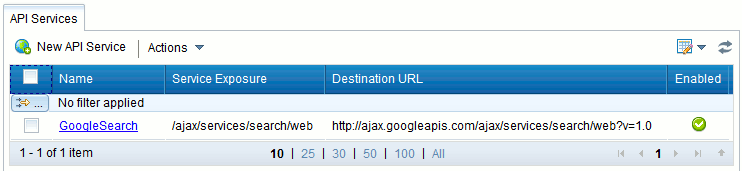
The virtualized service is displayed on the API Services tab:
Registered Service

Deploying to a Group

When you have completed the steps in the wizard, you must deploy the updated configuration to a API Gateway group, or a subset of API Gateways in a group, as follows:
  1. Click Actions -> Deploy on the left in the API Services tab.
  2. In the Deployment Wizard, select the group and API Gateway instance(s) to which you wish to deploy the current working configuration, and click theNext.
  3. Enter a comment for this deployment (for example, registering google search service).
  4. Click Deploy.
  5. Click Finish.


Thursday, August 21, 2014

Oracle® Fusion Middleware OES-11g Release 2 (11.1.2.2.0)- PEP Query API Example

Oracle® Fusion Middleware OES-11g Release 2 (11.1.2.2.0)- PEP Query API Example

Oracle Entitlements Server offers two types of query requests. You can request a list of all actions for a particular Resource (and its children), or you can request complete authorization results for a particular Resource (and its children). Both types of queries will retrieve results for all instantiated Resources of a given Resource Type.

package com.mindtelligent.oes.util;

import java.util.*;


import com.bea.security.*;


import java.io.FileWriter;

import java.io.PrintWriter;

import org.openliberty.openaz.azapi.constants.PepRequestQueryType;


import weblogic.security.principal.*;


import javax.security.auth.*;


import java.security.*;


import java.security.acl.Group;


import weblogic.security.principal.WLSUserImpl;

import weblogic.security.principal.WLSGroupImpl;

import javax.security.auth.spi.LoginModule;


import oracle.security.jps.openaz.pep.PepRequestFactoryImpl;


import org.openliberty.openaz.azapi.pep.Obligation;


import org.openliberty.openaz.azapi.pep.PepException;
import org.openliberty.openaz.azapi.pep.PepResponse;


public class PEPQuery {
    public static void main(String[] args) {      
        Subject user = new Subject();
        Principal p = new WLSUserImpl("hsaluja");
        user.getPrincipals().add(p);
        Principal g = new WLSGroupImpl("MindTelligentCRMUsers");
        user.getPrincipals().add(g);
        // Resource being accessed AppName/ResourceType/ResouceName
        String resourceString = "CRMApplication/CRMResourceType/CRMResource";
        // Action initiated by the user
        String action = "access";
        // String action = "close";
        // Environmental/Context attributes
        Map env = new HashMap();
        env.put("isEmployee","true");
        //   Simple grant-deny call
        while (true) {
            try {
                // get Authorization response from OES
                long start = System.currentTimeMillis();
                PepResponse response;                
                response =
                        PepRequestFactoryImpl.getPepRequestFactory().newPepRequest(user,
                                                                                   action,
                                                                                   resourceString,
                                                                                   env).decide();
                long end = System.currentTimeMillis();                
                System.out.println("Time: " + (end - start) + "ms");
                System.out.println("Request: {" + user.toString() + ", " +
                                   action + ", " + resourceString +
                                   "} \nResult: " + response.allowed() +
                                   "\n Obligation(s) :");               
                // Process the Obligations and write them to a file
                Map<String, Obligation> obs = response.getObligations();
                if (obs != null && !obs.isEmpty()) {
                    for (Map.Entry<String, Obligation> entry :
                         obs.entrySet()) {
                        PrintWriter out =
                            new PrintWriter(new FileWriter("/home/oracle/obligation.txt"));
                            System.out.println(entry.getValue().getStringValues().values());
                        //out.close();
                    }
                }
            } catch (PepException e) {
                System.out.println("***** Caught exception: " +
                                   e.getMessage());
                e.printStackTrace();
                System.exit(1);
            } catch (Exception ex) {

                StackTraceElement[] elements = ex.getStackTrace();

                for (int i = 0; i > elements.length; i++) {
                    System.out.println(elements[i]);
                }
                ex.printStackTrace();
            }
            Runtime rt = Runtime.getRuntime();
            long usedMB = (rt.totalMemory() - rt.freeMemory()) / 1024 / 1024;
            System.out.println("memory usage: " + usedMB + "MB");
            System.out.println("sleeping 5 sec. Hit Ctrl-C to quit\n");
            try {
                Thread.currentThread().sleep(5000);
            } catch (Exception e) {
                e.printStackTrace();
            }
        }
    }

}

Tuesday, July 15, 2014

OIM 11.1.2.2 Create Identity.jks using Weblogic Import Private Key Utility

OIM 11.1.2.2 Create Identity.jks using Weblogic Import Private Key Utility


  • Go to the server lib directory of WebLogic:
      cd $MIDDLEWARE_HOME/wlserver_10.3/server/lib/


  • Set the right environment:
             . ../bin/setWLSEnv.sh

  • Use the key and certificate to crate the identity
java utils.ImportPrivateKey -certfile rootcertificate.crt -keyfile mindtelligent.com_wildcard.key -keyfilepass  keyFilePassword -keystore MindTelligentIdentityKeyStore.jks -storepass mindtelligent1 -alias mindtelligent1com -keypass mindtelligent1


  • Verify if the certificate is created correctly
     keytool -v -list -keystore MindTelligentIdentityKeyStore.jks -storepass 

Tuesday, July 1, 2014

Oracle® Fusion Middleware OES-11g Release 2 (11.1.2.2.0)- How to configure custom Attribute Retriever

Oracle® Fusion Middleware OES-11g Release 2 (11.1.2.2.0)- How to configure custom Attribute Retriever

Create a java code, convert to a jar, and add it to the CLASSPATH.
Here is the sample of custom attribute retriever:

package com.mindtelligent.oes.customproviders;
import com.bea.security.providers.authorization.asi.AttributeRetriever;
import weblogic.security.spi.Resource;
import weblogic.security.service.ContextHandler;


import javax.security.auth.Subject;
import java.util.*;
import java.io.*;

public class MyAttributeRetriever implements AttributeRetriever {
private static final String TestCustomAttribute = "TestCustomAttribute";
private String[] attributes = {"TestCustomAttribute"};
private static boolean switchStatus = true;
public String[] getHandledAttributeNames() {
return attributes;
}
public Object getAttributeValue(String name,Subject subject,Map roles,Resource resource,ContextHandler contextHandle) {
ArrayList listValues = new ArrayList();
String attrValue = "default";
if (name.equals("TestCustomAttribute")) {
System.out.println("Name"+name);
attrValue = "TestCustomAttribute";
System.out.println( "attrValue value is TestCustomAttribute "); }
else { System.out.println( "attrValue value is NotTestCustomAttribute "); }
return attrValue;}


Modify jps-config.xml, located in the Security Module
For Example:

<serviceProvider class="oracle.security.jps.az.internal.runtime.provider.PIPServiceProvider" name="pip.service.provider" type="PIP"/>
<serviceInstance name="pip.service.MyAttributeRetriever" provider="pip.service.provider">
      <property name="type" value="CUSTOM_PIP"/>
      <property name="application" value="TestCustomAttribute"/>
      <property name="description" value="MyAttributeRetriever"/>
      <property name="classnames" value="com.mindtelligent.oes.customproviders.MyAttributeRetriever"/>
  </serviceInstance>
<serviceInstanceRef ref="pip.service.MyAttributeRetriever"/>


Oracle® Fusion Middleware OES-11g Release 2 (11.1.2.2.0) Configure Web Service Security Module

Oracle Fusion Middleware OES-11g Release 2 (11.1.2.2.0) Configure Web Service Security Module

To configure RMI Security Module instance in a controlled distribution mode, then do the following:


Open 
smconfig.rmi.controlled.prp file (located in OES_CLIENT_HOME/oessm/SMConfigTool) in a text editor, and then specify the parameters described in following table

ParameterDescription
oracle.security.jps.runtime.pd.client.policyDistributionMode
Accept the default value controlled-push as the distribution mode.
oracle.security.jps.runtime.pd.client.RegistrationServerHost
Enter the address of the Oracle Entitlements Server Administration Server.
oracle.security.jps.runtime.pd.client.RegistrationServerPort
Enter the SSL port number of the Oracle Entitlements Server Administration Server. You can find the SSL port number from the WebLogic Administration console.


Run the config.sh (located in OES_CLIENT_HOME/oessm/bin on UNIX) or config.cmd (located in OES_CLIENT_HOME\oessm\bin on Windows) as follows: 

config.sh -smType ws -smConfigId ws -WSListeningPort 9410 -prpFileName /data/app/Oracle/Middleware/oesclient/oessm/SMConfigTool/smconfig.ws.controlled.prp


When prompted, specify the following:
  • New key store password for enrollment
  • Oracle Entitlements Server user name (This is the Administration Server's user name)
  • Oracle Entitlements Server Password (This is the Administration Server's password)


Saturday, June 14, 2014

Oracle SOA 12c 2Way SSL Extracting Private Key using OpenSSL

This thread explains on the steps to convert .pfx files to JKS


  • Run the attached OpenSSL command to extract the certificate from the .pfx file
openssl pkcs12 -in filenameWithPrivateKey.pfx -out mindtelligent.crt -nodes

  • Open the file mindtelligent.crt and cut/past the following section ina file called MindTelligent.key

-----BEGIN RSA PRIVATE KEY-----
(Block of Encrypted Text)
-----END RSA PRIVATE KEY-----

  • The Rest of the file mindtelligent.crt will have Server Certificate, Root Certificate, and Intermediate Certificate. 

  • Follow the Blog Post here, for creating an Identity Key Store

How IdP Groups Are Tied to Databricks Groups (Unity Catalog)

  🔗 How IdP Groups Are Tied to Databricks Groups (Unity Catalog) 🔑 Key Principle (Read This First) Databricks does NOT “map” IdP groups...